Contents
In this tutorial we will to show in a clear way and in detailed steps how to install the video game TerraTech from the Steam platformon a computer with Linux, especially Fedora, although it is also applicable to other distros such as Ubuntu, Debian, Linux Mint, Arch Linux, OpenSUSE or Manjaro (some of the most popular).
Some very popular Linux distros:
 Ubuntu |
 Debian |
 Fedora |
 Linux Mint |
 Arch Linux |
 OpenSUSE |
 Manjaro |

 Steam is a gaming platform, the titles it offers can only be used by installing the official Steam program. Thus first of all you need to have it installed If you dont have it installed In this article I explain how to install Steam on Fedora.
Although it is also applicable to CentOS and to almost any distro in the Fedora family, such as Mageia.
Valve, the company behind Steam, has used Wine to create its own version combining it with its own tools and thus giving birth to Proton. Which we will see in the Steam app under the name Steam Play. Thanks to Steam Play many games for Windows can now be used on Linux both on Fedora and CentOS, Mageia, Ubuntu, Debian, Linux Mint, Arch, Manjaro, etc. And one of those games you can now play on Linux is TerraTech.

That said…simply add: Welcome to FedGamer.net! the site dedicated to gaming on Fedora. Lets start the article!
How to install TerraTech from Steam on Linux
 Step 1: Open Steam on your computer and log in with your user: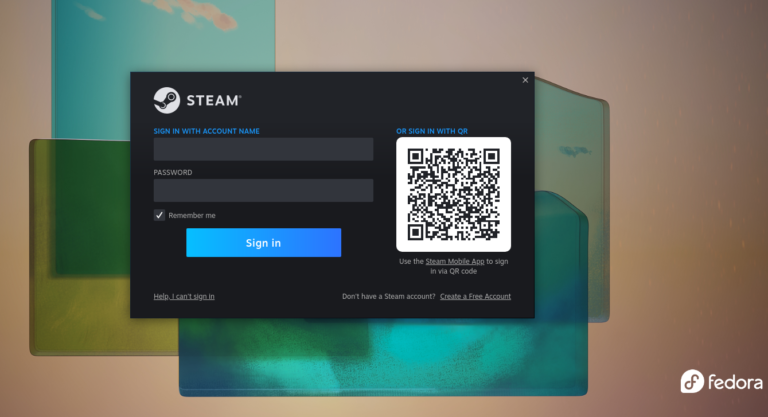
Step 2: Click on the Steam tab you’ll see at the top left once you’re logged in. When you click it, a list of options will drop down click on Settings or Preferences.

Step 3: When you click on Settings, a window with several options will open on the left the last is Steam Play. Click it and you will see the following:
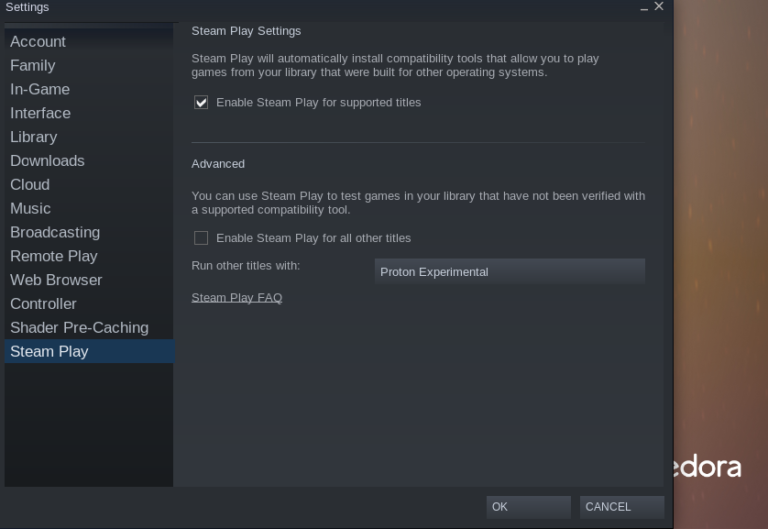
As you can see the first checkbox that says Enable Steam Play for supported titles is enabled if it isn’t, click to enable it. And further down where it says Proton Experimental click there and choose the highest version, that is, the most recent, note the first number and as you can see in this screenshot, were at 7. Finally, check (if it isnt) the checkbox that says: Enable Steam Play for other titles.
Lastly click OK. Attached here is another screenshot:
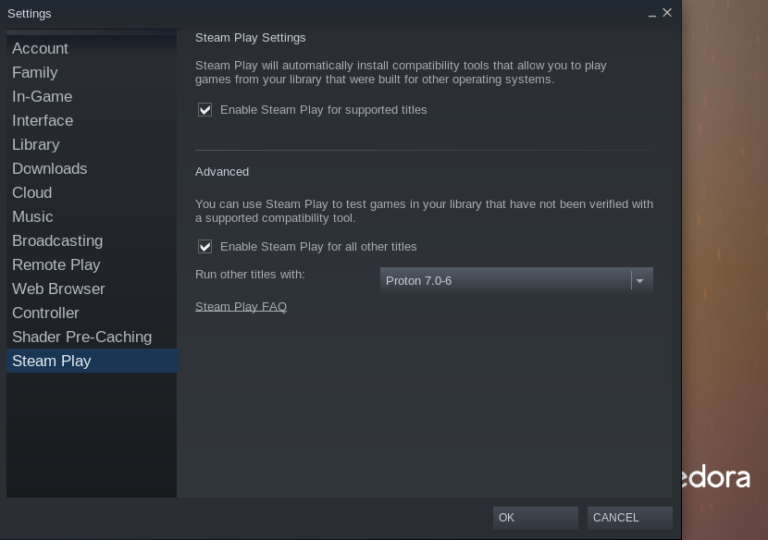
Note: It’s not recommended to use the experimental version, because it often has bugs as a test version and its best not to use it except if a game doesn’t work as a last resort.
Step 4: Once Proton is enabled, the Steam app may restart automatically. If it doesn’t happen, close it and open it again. When it restarts, it usually loads the Proton packages, but if it doesn’t happen now, it will in the next step.
Step 5: Go back to the Steam Library, or Library, and there you’ll see your games. Now Windows games should look like this:
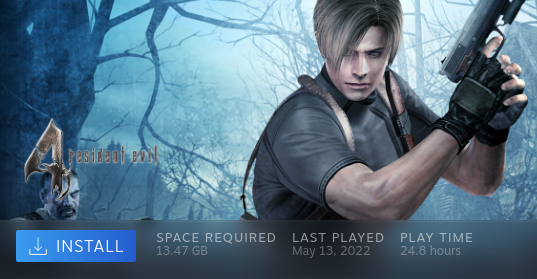
In place of this:
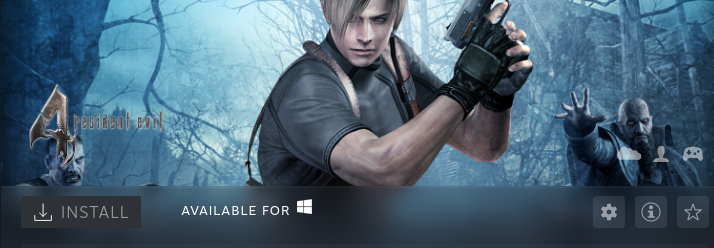
In case you didn’t notice the subtle difference now the Install button is blue because it’s available for our Linux distro, in this case Fedora.
Step 6: Click Install. It may download Proton at this point, so be patient. After that, the game will download and install if it doesn’t, click Install again.
And that’s it, you just need to follow the installation instructions you see in Steam. When the box shown in the next screenshot appears, if we choose Create Desktop Shortcut it will create a shortcut, like Firefox or LibreOffice. And if we don’t check that option, we’ll have to open Steam each time we want to start the game (which I find tidier, but it’s a matter of preference).
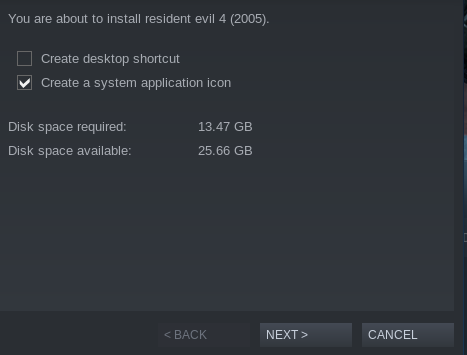
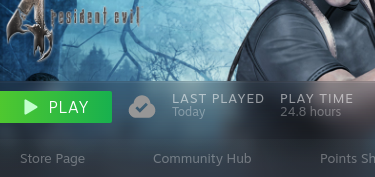
Step 7: Play!
Is the game TerraTech compatible with Linux Fedora?
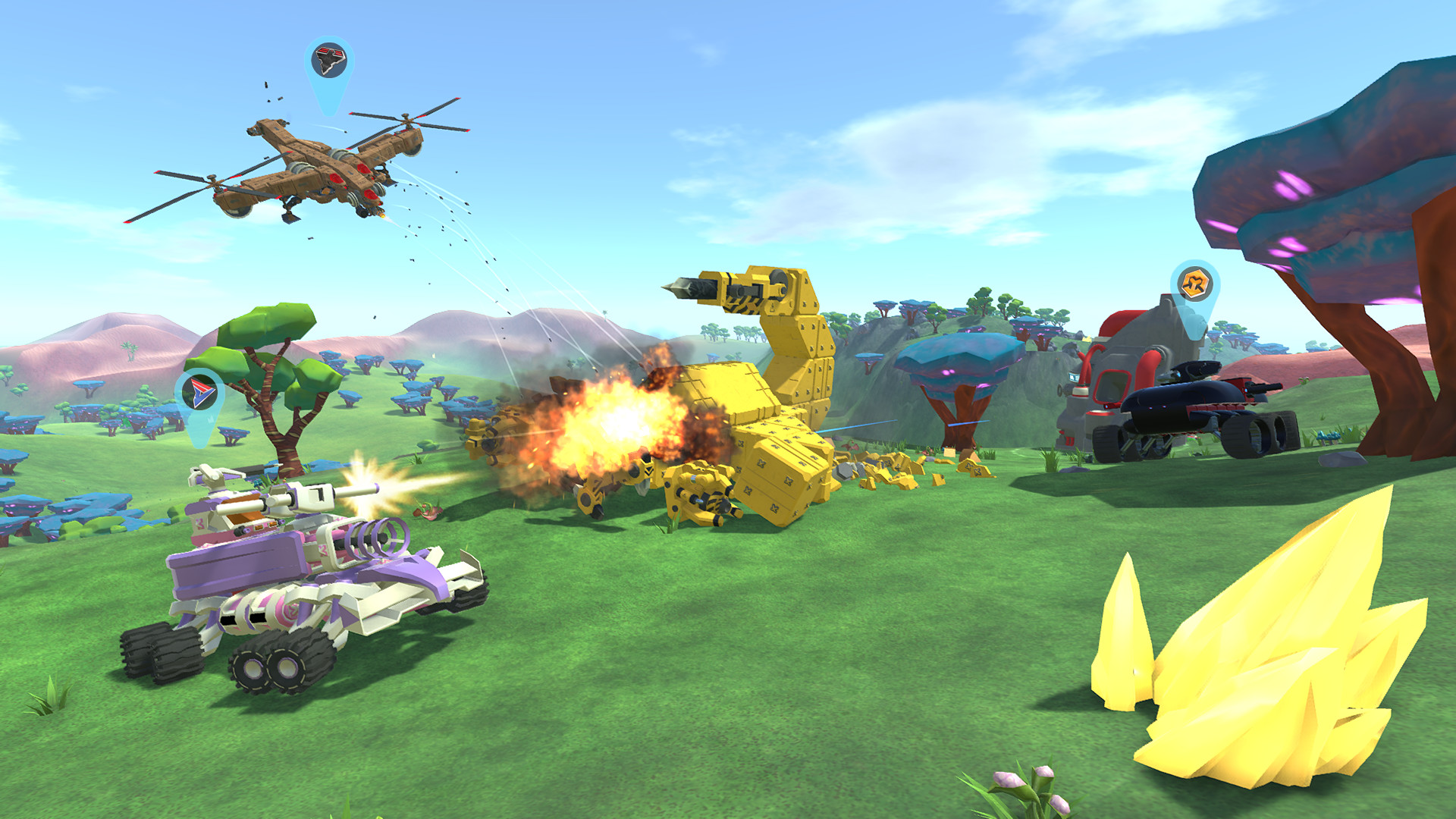
In principle yes, thanks to Proton but I must add that it is not ideal in all cases the adaptation of a game originally for Windows to Linux. So although in most cases it will run perfectly there are sometimes exceptions. Sadly, you cannot know in advance if it will cause an error or not, in my experience it normally doesn’t, I never had that problem, but it could happen.
To make sure before installing, there is a way: consult the community’s experience, that is, other users experience. The community has set up a site where users leave their feedback on each game indicating the distro, the hardware, etc. At a glance you can see if someone with your distro, be it Fedora, Ubuntu or any other, had a good or bad experience.
The site Im talking about is ProtonDB and to quickly check if a Windows Steam game works on Linux, the best thing is to look at the rating:
- Native: It’s a native Linux game, created specifically for it.
- Platinum: Works perfectly on Linux.
- Gold: Works very well, with maybe a minor fix easily solvable.
- Silver: Works with a minor issue that doesn’t impair gameplay.
- Bronze: Works, but sometimes stops or has major errors.
- Borked: Doesn’t work: won’t start or crashes too much.
Here’s a screenshot as an example. As you can see, for Resident Evil the category is Platinum:
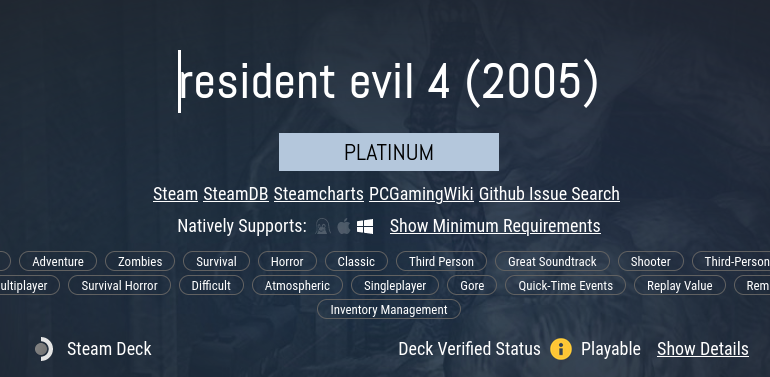
From Silver to Platinum indicates an excellent compatibility level. Another thing we can do is look at comments from users with the same distro as ours. In any case, you can check the compatibility of TerraTech on Linux here:
Supported languages: Languages supported by this video game:
- 🇪🇸 Spanish, 🇬🇧 English, 🇫🇷 French, 🇩🇪 German, 🇮🇹 Italian, 🇯🇵 Japanese, 🇨🇳 Chinese
- 🇷🇺 Russian, 🇰🇷 Korean, 🇧🇷 Brazilian Portuguese, 🇵🇹 Portuguese, 🇵🇱 Polish, 🇹🇷 Turkish, etc.
Here’s a trailer or featured clip of TerraTech:
Official website: http://www.terratechgame.com
How to buy the game TerraTech cheap
There are many stores where you can buy cheaply Steam games, below I mention two of the cheapest and most reliable:
Once youve purchased the game, you just have to redeem the code in your Steam account and you’re set.
Be the first to leave a comment